JPG to PDF: Turn Your Photos Into One Tidy PDF
This JPG to PDF tool binds one picture or a whole stack of them into a single PDF document. Everything is assembled on your own device, so the photos never travel to anyone.
Converted on this device. Your files are never uploaded.
How it works
Pick your pictures
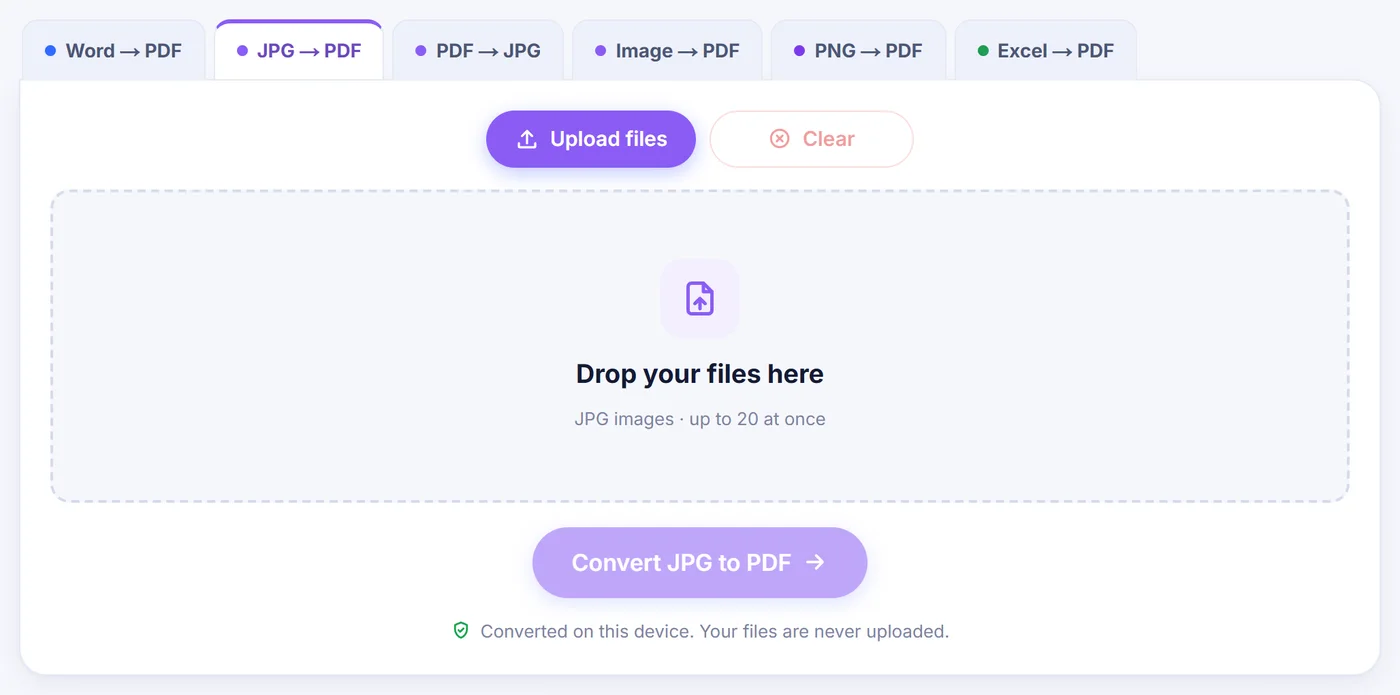
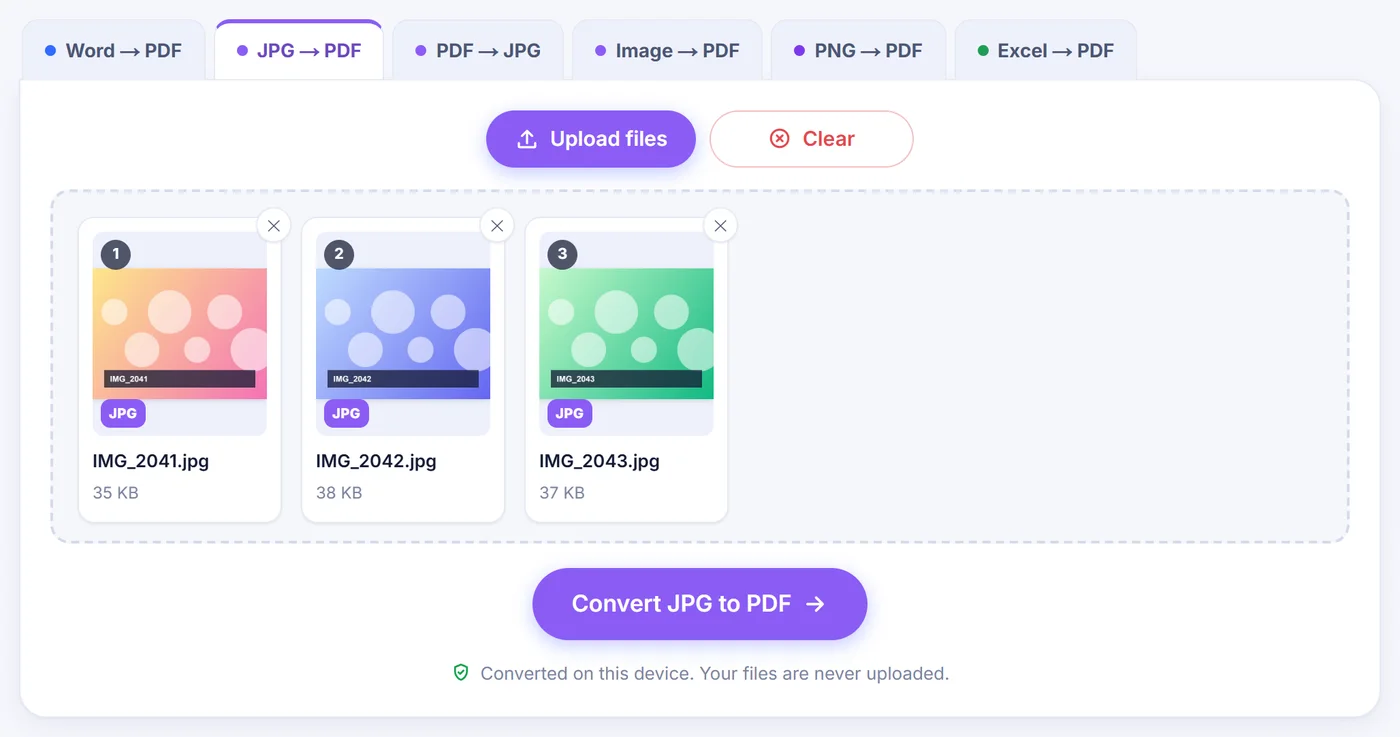
Select or drop your JPG files; phone photos that were saved sideways are turned upright before the editor opens.
Set the order and layout
Drag the page cards around, rotate or delete any of them, then choose Fit to image, A4 or Letter and a margin.
Save the PDF
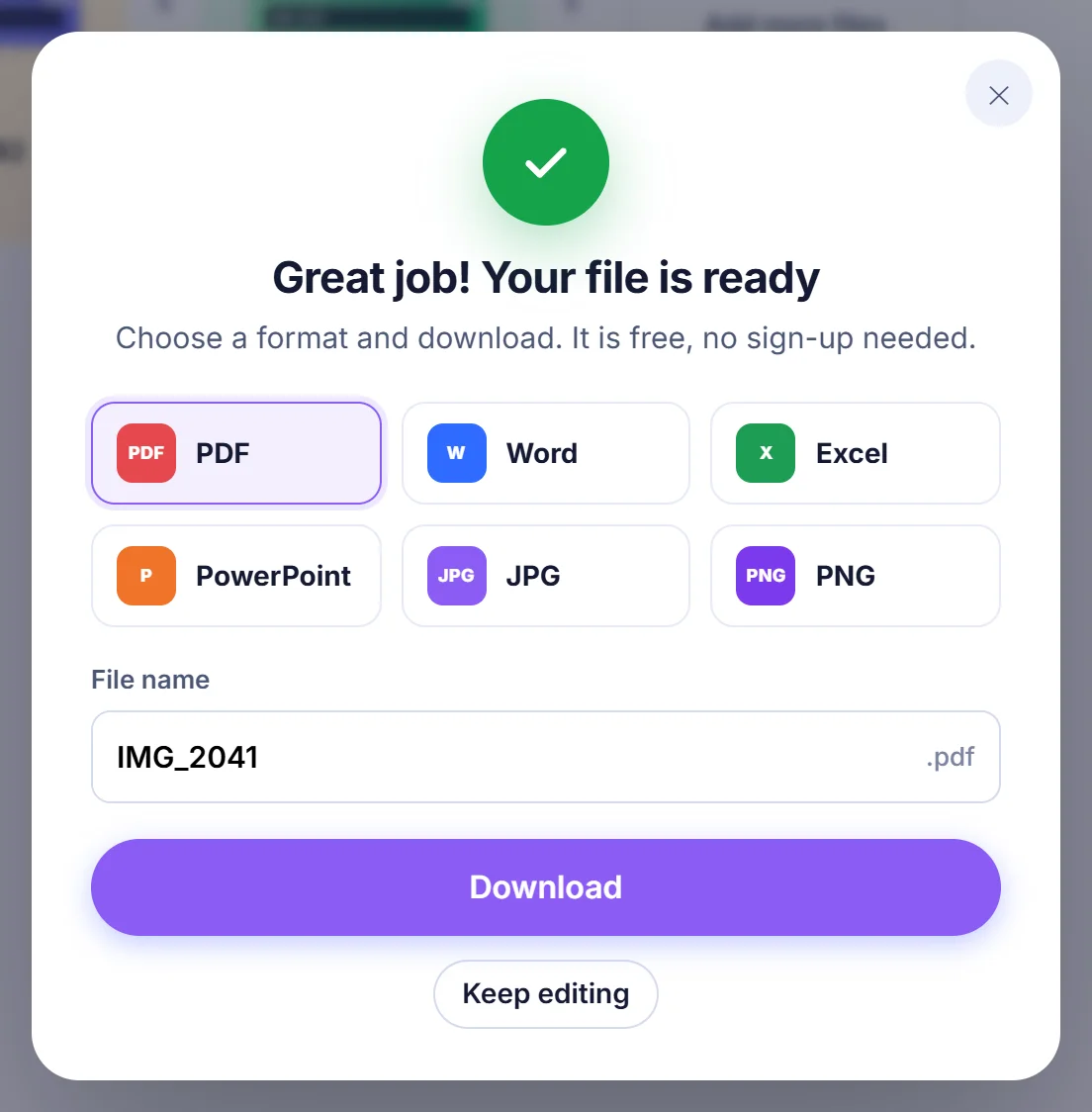
Press Create PDF, check the suggested file name and click Download to save the finished document.
How JPG to PDF works on this page
You give the page some photos, and it gives you back one PDF where every picture is its own page. A few things happen in between, though. Before anything is built, each file is checked by reading its first bytes rather than trusting its name. A screenshot that was saved as a PNG but renamed to .jpg still works, and a file that arrives with no type at all, which happens with some cloud drives and messaging apps, is recognised anyway.
After that check the pages open in an editor. Each photo is shown as a card with a small toolbar, and nothing is written until you press Create PDF. So you can take your time: move things around, look at a page in full-screen preview, or remove the blurry shot you added by mistake.
When a single PDF beats a folder of photos
Most people reach for this conversion because somebody on the other side asked for "one PDF, please". A few typical cases:
- A landlord, school or insurer wants photographed paperwork as one attachment, not twelve.
- An online portal accepts PDF uploads only, and your scans live in the camera roll.
- You want to print a set of pictures on standard office paper without fiddling with print dialogs.
- Expense receipts from a trip need to stay together, in date order, for an accountant.
A PDF also keeps the order fixed. Send ten loose JPGs and the recipient sees them sorted however their email client likes; send one PDF and page three is always page three.
Arranging the pages before you save
You can drag a card to a new spot, or use the small arrows on each card to nudge it one place left or right, which is easier on a touch screen. Every card also has buttons to preview, duplicate, rotate by 90 degrees and delete. Above the pages you will find Rotate all, Sort and Blank page, and an Undo button that also answers to Ctrl+Z if you change your mind.
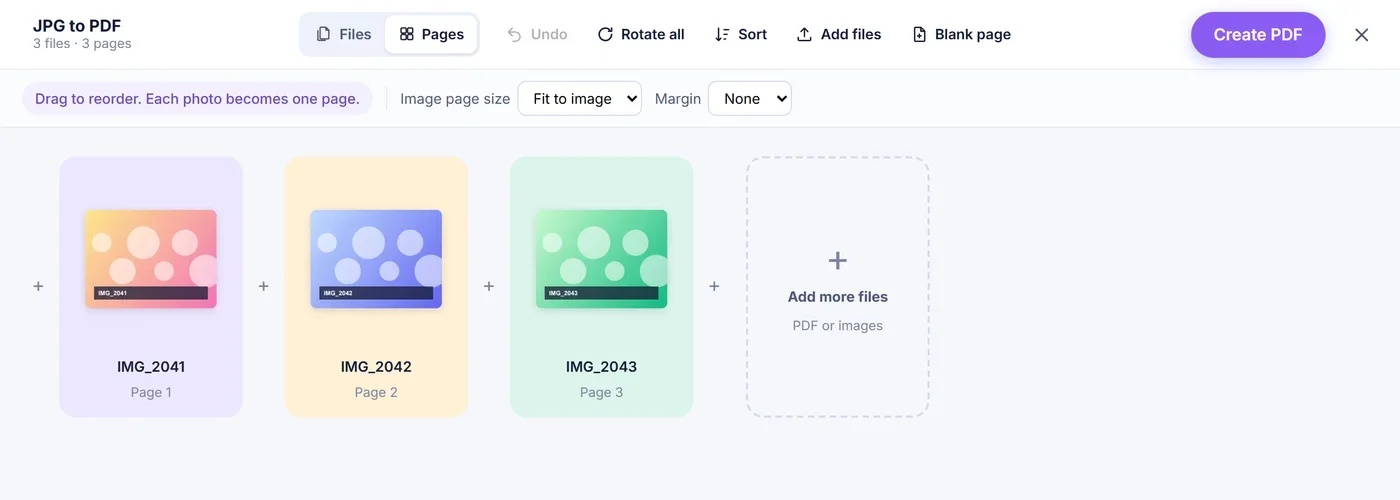
Sort is handy when your camera numbers files. It orders by name from A to Z or Z to A, and it understands numbers, so IMG_9 lands before IMG_10 instead of after it. There is also a reverse option for when you shot a document from the last page backwards. A blank page is added at the end; drag it between two photos to separate sections, and it takes the size of the page that comes before it in the finished PDF. The small plus signs between cards let you insert more photos at an exact position, and the "Add more files" card at the end appends them.
Page size: Fit to image, A4 or Letter
Fit to image gives each page the proportions of its photo, so nothing is surrounded by white space. It is the best choice for reading on a screen. The page dimensions are capped at 1600 points on the longest side (roughly 56 cm), but that only limits how big the page is declared, not how many pixels the picture keeps.
A4 and Letter are for printing. Each photo is centred and scaled down or up until it fits the sheet, with no cropping. A photo that is wider than it is tall gets a landscape sheet automatically, so a panorama is not squeezed into a narrow strip in the middle of a portrait page.
Margins
The Margin menu offers None, Small and Large. Small leaves a border of 20 points (about 7 mm) and Large leaves 40 points (about 14 mm). With A4 or Letter the margin keeps the photo away from the paper edge, which helps on printers that cannot print to the border. With Fit to image the margin is added around the picture as a white frame.
Why phone photos no longer come out sideways
A phone camera often stores the pixels of a portrait photo lying on their side and adds a hidden orientation flag in the EXIF data that tells your gallery app to turn it. A PDF has no such flag, so if the picture were copied in unchanged, the page would lie on its side. This tool reads the flag, redraws those photos the right way up, and tells you in a short message how many it fixed. Mirrored and upside-down variants are handled too, not just the common 90-degree case. If you still want a page turned, the rotate button is right there.
Quality: what stays identical and what gets redrawn
A JPG that is already upright and saved in a normal (baseline or progressive) form is placed into the PDF exactly as it is, with no second compression pass. Your PDF page carries the same pixels your camera captured. Only photos that have to be straightened, plus rare JPEG variants that PDF readers may not display, are redrawn once at 92% JPEG quality.
Redrawing needs memory, so there are limits. On iPhone and iPad, Safari refuses canvases above about 16 megapixels, so a bigger photo that needs straightening is scaled down for that step. Desktop browsers handle much more. If a device still runs out of memory, the tool tries again with a quarter of the pixels, and the message after loading tells you how many photos could not be redrawn.
Files that need a little attention
- iPhone HEIC photos are converted to JPG on your device before they become pages, so you do not need to change camera settings first.
- PNG, WebP, GIF and BMP images are accepted alongside your JPGs and become pages the same way. A file whose extension does not match its content is still read correctly.
- TIFF is not supported; open it in any image viewer and save it as JPG first.
- Empty or unreadable files are skipped, and a short message names them so you know what is missing.
- Existing PDFs can be added from inside the editor, and their pages join the new document. A password-protected PDF has to be unlocked before it can be included.
Tips for a clean result
When you photograph paper, shoot from straight above in good daylight and fill the frame with the sheet; the tool does not crop or flatten pictures, so what you capture is what you get. If a phone feels slow with dozens of large photos, build the PDF in two smaller batches or switch to a computer. The suggested file name comes from the first photo you added, even if you move it later, and you can change it in the File name box before you click Download.
Your photos stay on your device
All of the work, from reading the files to writing the finished PDF, is done by JavaScript running in your browser tab. Nothing is sent to a server, so there is nothing stored anywhere that would need deleting later. Close the tab and the photos are gone from memory. There is no account, no email field and no watermark stamped on your pages.
Frequently asked questions
How do I combine several JPG images into one PDF file?
Select all the photos together or drop them on the page, put the cards in the order you want, and press Create PDF. Every image becomes one page of the same document.
Why is my JPG rotated the wrong way after converting to PDF?
Phones often save portrait pictures sideways with an orientation tag that PDF files ignore. This converter applies that tag before building the pages, so they match what you see in your gallery.
Can I convert JPG to PDF on my iPhone?
Yes, it works in Safari on iPhone and iPad. HEIC photos are changed to JPG on the device, and very large photos that need straightening are scaled to about 16 megapixels because of Safari limits.
Does converting JPG to PDF reduce the image quality?
Standard JPGs that are already upright are copied into the PDF unchanged, so quality stays the same. Only photos that must be straightened, rare JPEG variants and HEIC photos are saved again once, at 92% quality.
How do I fit a JPG onto an A4 page?
Choose A4 in the Image page size menu. The photo is centred and scaled to fit without cropping, and you can add a small or large margin around it.
Are my photos uploaded when I convert them?
No. The PDF is built entirely in your browser, and the images never leave your phone or computer.
How do I rename the PDF before downloading it?
The download window suggests the name of the first photo you added, so holiday-01.jpg gives holiday-01.pdf. Type a new name in the File name box before clicking Download.